Showing posts with label CONDITIONAL FORMAT. Show all posts

Sunday, March 7, 2010

OBIEE conditional format using arrows

On the OTN forums (http://forums.oracle.com/forums/thread.jspa?threadID=1039411&tstart=0) an example for this:

image

was sought.

Let’s start with the basic report:

image

Calculate the delta:

image

Add two conditional formats:

image

Add the correct images:

image

Set it to image only:

image

There you go:

image 

Till Next Time

Saturday, February 6, 2010

OBIEE Pivot Conditional Format Grand Total Part 2

In this OTN forum discussion (http://forums.oracle.com/forums/thread.jspa?messageID=4025463&#4025463) JavaSript master Joe and OBIEE Crack Raghu show us two separate ways of making a conditional format for the grand total on a table.
Raghu’s way editing XML:
Let’s start with a basic table:
image
Make a Pivot:
image
Put it on a Compound Layout:
image
On the basic table add a conditional format on a random column:
image
Open the advanced tab:
image
locate the saw:condition part :
<saw:condition>
    <sawx:expr xsi:type="sawx:comparison" op="greaterOrEqual">
        <saw:columnRef columnID="c1"/>
        <sawx:expr xsi:type="xsd:decimal">1000000</sawx:expr>
    </sawx:expr>
        <saw:displayFormat backgroundColor="#FF0000" wrapText="true"/>
</saw:condition>
Copy and paste this into an good! XML Editor (fi Notepad ++)
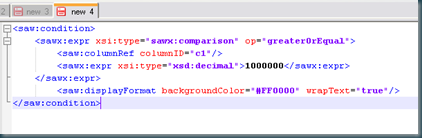
image
Remove the condition from your bas table:
image
Go back to the advanced tab:
image
Copy and paste all XML into your XML EDITOR:
image
Locate the Pivot View part:
image
Copy you condition into the column part just below the labels between saw:totalValue and saw:displayFormats tags
image
Copy the XML back to OBIEE, don’t forget to press the SET XML tag:
image
There you go:
image
Although this method of Raghu is very elegant I personally prefer Joe method discussed in part 1. With XML Editing you run into the risk of loosing your stuff when make a change in your report easily, also most user won’t have access to the Advanced TAB.
Till Next Time

Wednesday, July 8, 2009

OBIEE Adding custom image in Conditional Column Format

My main inspiration for this article is based on the reply of Daniel (green4X) in this OTN entry: http://forums.oracle.com/forums/thread.jspa?threadID=921926

Step 1: Locate the {OracleBI}\web\app\res\s_{StyleName}\meters folder and create a subfolder called CompagnyImages (or whatever other name you like!)

image

Step 2:

In the CompagnyImages Folder create a subfolder called images (or whatever other name you like!)

image

Step 3:

Put all the image you want to use in the images folder, they can any web recognized format (jpg, gif, png….)

image

Step 4:

Go back to your CompagnyImages Folder and add a index.gif picture, as far asa I know this has to be a gif (lowercase). This will be the “category” in the conditional format selector:

image

Step 5:

If you are using OC4J_BI sync the folder {OracleBI}\web\app\res\s_{StyleName}\meters the one in {OracleBI}\oc4j_bi\j2ee\home\applications\analytics\analytics\res\s_{StyleName}\meters

Step 6:

Restart the presentation server and the application server (OC4J)

Step 7:

Test it by creating a simple report:

image

Till Next Time