Showing posts with label REPOSITORY. Show all posts

Friday, April 20, 2012

OBIEE 11116 repository on MS-SQL I

We had to do a POC on some MS-SQL data. Instead of bringing an extra Oracle DB we used an existing MS-SQL instance.

1. Create a repository database:

We called ours “Repositories” Winking smile

image

2. Enable case-sensitive collation

ALTER DATABASE Repositories COLLATE Latin1_General_CS_AS

3. Enable Row versioning

ALTER DATABASE Repositories SET READ_COMMITTED_SNAPSHOT ON


Sunday, October 9, 2011

OBIEE11g Golden Rules: RPD-Presentation Layer

First of al the original inspiration for these “Golden Rules” Series are based on the “20 GOLDEN RULES FOR REPOSITORY DESIGN” from the people at Peak Indicators. Kudos to them.

The series contains:

The “rules” is this article are somewhat in random order

This is always a “work in progress” and please feel free to make any suggestions!

Presentation Layer

- Common dimension

When you have multiple Subject Areas, list the common dimensions in the same order  across all the Subject Areas

imageimage

- Time dimension first:

Since the time/calendar dimension is often the main aggregator make it the first in your presentation layer list.

- No prefixes:

Presentation Table names within each Subject Area must not begin with “Dim – “ or “Fact –“ or “Fact Compound –“. So remove these prefixes if they are present after creating the Subject Area by dragging Logical Tables directly from the Business Model.

- Identify your facts:

The Presentation Table containing your facts should be listed right at the bottom, and the Presentation Table name should contain words like “Measures” or “Facts”

image

- Ensure logical relationship:

There should be absolutely no possibility whatsoever of a user selecting objects from a Subject Area that have no logical relationship. So, if there are any objects within the same Subject Area that cannot co-exist in the same report, then your Subject Area design is incorrect!

- Split over multiple subject area:

Within OBIEE11g report can be build using multiple presentation layers based on the same business layer:

image Consider splitting your presentation layer in “sub” areas.

- Dimension Column Order:

Try to have the column in the same order as your hierarchy: Year > Quarter > Month > Week > Date or Business Line > Brand > Product

- Special characters:

Special HTML characters {< > / } should be avoided in the object names. Not ever browser can render them correctly.

- Metadata dictionary

Have a well maintained metadata dictionary in place:

image

Remember in OBIEE11G you have to redeploy the metadata dictionary after each RPD deployment

Till Next Time

Thursday, October 6, 2011

OBIEE11g Golden Rules: RPD-Business Model Layer

First of al the original inspiration for these “Golden Rules” Series are based on the “20 GOLDEN RULES FOR REPOSITORY DESIGN” from the people at Peak Indicators. Kudos to them.

The series contains:

The “rules” is this article are somewhat in random order

This is always a “work in progress” and please feel free to make any suggestions!

Business Model Layer

- Prefix Logical Tables

All Logical Tables should be prefixed. There are several naming convention's in use:

  • “Dim – “, “Fact – “ or “Fact Compound –“
  • “D## name”, “F## name” or “FC## name”

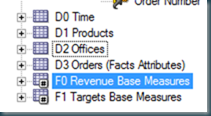
image

- No “physical” column names

No “physical” column names should ever be seen on the Business Model layer. All naming conventions should be “business oriented”. For example use “$ Revenue” rather than “DOLLARS” .

- No Primary or Surrogate Physical Keys

Physical Primary Keys or Surrogate Keys should not be present on the Business Model layer (unless, for example, you have a Primary Key such as Order Id which will be displayed on reports)

- Logical Keys

Dimension Logical Tables must always have a Logical Key assigned. The Logical Key should be something “business oriented” such as “Employee Login” rather than “EMPLOYEE_PK”

image

- No Facts in dimensions

Dimension Logical Tables must only contain dimension attributes, they should never contain any measure columns (which have an Aggregate Rule)

- No Logical Keys on facts

Fact Logical Tables should not have a Logical Key assigned.
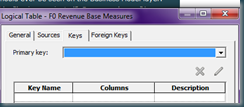
image
[UPDATE: ] As far as I know this is because the OBIEE optimizer uses the logical key to determine the "driving" table. No logical keys on fact tables should ensure the "correct" optimizer path. Please correct me if I’m misinformed.

- Aggregation Rules on Facts

Every Logical Column within a Fact Logical Table must be a measure column, and therefore have an Aggregation Rule assigned.
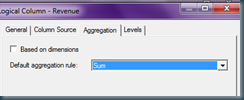
image

- Only Complex Joins

When defining Logical Joins between Logical Tables, only use “Complex Joins” (and use the default settings – you only ever specify a “Driving Table” when dealing with cross-database joins)

- No Snowflakes

The Business Model should only consist of logical star-schemas, there should not be any snow-flaking

image

- Hierarchies on Dimensions

Every Dimension Logical Table should have a corresponding Dimension Hierarchy (with “Total” as a Grand Total level, and “Detail” at the lowest level)

image

- Number of Elements

Each level of a Dimension Hierarchy should have its “Number of Elements” appropriately set (there is a utility in Tools that can do this automatically).

 image

- Content Levels

Every Logical Table Source within every dimension and fact Logical Table should have its “Content Levels” appropriately set. The only time the “Content Level” is not set for a particular dimension is when there is no logical relationship existing

image

- Multiple facts tables

Do not merge all your measures into a single Fact Logical Table. For example, you should split “Forecast Sales” and “Actual Sales” measures into two Logical Tables e.g. “Fact – Sales” and “Fact – Forecast”

image

- Description fields

All available description field should have meaningful descriptions with non technical users.

Till Next Time

Monday, October 3, 2011

OBIEE11g Golden Rules: RPD-Physical Layer

First of al the original inspiration for these “Golden Rules” Series are based on the “20 GOLDEN RULES FOR REPOSITORY DESIGN” from the people at Peak Indicators. Kudos to them.

The series contains:

  • RPD-Physical Layer
  • RPD-Business Model Layer
  • RPD-Presentation Layer
  • Catalog Structure
  • Report Building
  • Dashboard Building

The “rules” is this article are somewhat in random order

This is always a “work in progress” and please feel free to make any suggestions!

Physical Layer

- Clear the cache check box

image

Using cache should be a last resource, reconsider your data model and ETL processes first!


- Always use “Foreign Key” joins, not “Complex Joins” on the Physical Layer

If your join looks like D_DATE = TRUNC(S_DATETIME) try add a extra column S_DATE in your DWH. Any matching processing done by the BI-server costs time and you often loose the advantage of an index in your DWH.

- Prefix your tables

When modelling a star-schema data-model, create aliases for all your physical tables (prefixed with either “Dim_”, “Fact_” or “Fact_Agg_” )

image

- Physical Display Folder

Use Physical Display Folder to organise your stars

image

- Call Interface

When possible, configure your connection pools to use a “native driver” to connect to your physical databases. For example, use OCI for connecting to an Oracle database rather than ODBC.
image

- Parameterize your data source name

image

This way you only have to change it in one place when moving from development to production.

- 3NF in DWH

Try to avoid doing 3NF to Star Schema Modelling in the Physical Layer. Flatten the table if possible during the ETL or in a view on the database.

- Connecting User

image

The User you use to connect to your data should by default not by the “owner” of the table, but should have only select rights trough a role.

Till Next Time

Monday, March 28, 2011

OBIEE11g preventing online RPD changes

I personally think it’s never a good idea to allow online changes to the RPD by default. Especially not on production environments. In OBIEE11g you can set the online editing of the RPD in

Enterprise Manager>Business Intelligence > Coreapplication > Capacity Management > Performance:

image

Click on lock and Edit Configuration:

image

Press close:

image

(un)Check the box:

image

Click Apply:

image

Press activate Change:

image

Wait a bit:

image

Press Close:

image

Go to the restart page by pressing:

image

Press Restart:

image

Till Next Time

Wednesday, September 30, 2009

OBIEE Open a Linux-Hosted OBIEE Repository in Online Mode (repost)

For those who run their OBIEE servers in a Linux environment, it’s possible to open your repository in Online mode from your Windows-based local machine. I just discovered this, so I thought I would pass it along. This assumes that you have the appropriate version of OBIEE installed on your local machine.
Update: Do not use spaces in your System DSN names. You will get an error when trying to connect to that server.
obiee_admin
This article has quite a few screenshots, so continue reading by clicking below:
All you need to do is create a new System DSN: Go to Start > Run…, and type odbcad32, then press enter (or open ODBC Data Sources from Administrator Tools).
Click the System DSN tab and click Add:
system_dsn_tab
Choose Oracle BI Server as the Driver:
driver
Give the DSN a Name (no spaces) and optionally a Description, and specify the hostname of your BI server, then click Next:
config1
Type a login ID and Password for your repository, and specify the BI Server Port. Check the option “Connect to Oracle BI Server to obtain default settings…” to make life easier, and click Next:
config2
Accept the defaults if you’re happy with them, and click Finish:
config3
You’ve now added a new System DSN to your local machine and are ready to open the repository in Online mode:
new_system_dsn
In the Administrator tool, choose the blue folder to open in online mode, and choose the DSN you just created from the list below the login prompt. Enter your login details and click Open to work on your repository in Online mode:
obiee_admin
Of course, as the OBIEE documentation recommends, I would only use Online mode for making small changes to your repository. Any significant amount of work should be done in offline mode.
This article was original posted on the Kevin C. oraclebi blog. See: http://obiee101.blogspot.com/2009/09/obiee-blog-lost.html
Till Next Time

Thursday, February 26, 2009

OBIEE Configuring Case Insensitive Search

If you look in the configuration guide you will find that the CASE_SENSITIVE_CHARACTER_COMPARISON parameter in the NQConfig file controls the case sensitive search within OBIEE. Be aware that you might be fooled by your database settings. If you are on an Oracle database 10G+ you can use a connection script in the repository to allow case insensitive searches. Go to the connection pool, click on the connection script tab.

image

Press New: image

Enter:

alter session set NLS_SORT=BINARY_CI
alter session set NLS_COMP=LINGUISTIC

Save the repository, reboot the BI-Server

Till Next Time

Monday, January 26, 2009

OBIEE Brackets in the BMM

A colleague discovered this: If you are using brackets in the BMM and the column is part of a dimension and the last character is a closing bracket ')'.

image 

Then when building a report the column appears 'strange' in answers, it includes the folder prefix:

image

It doesn't seem to influence the results, it appears to be just on of those things.....

image

Till next time

Friday, August 22, 2008

OBIEE scripting user into the repository

On the OTN forum today there was a question about how to script a new user into the repository: http://forums.oracle.com/forums/thread.jspa?threadID=697646&tstart=0

The only way I know is using the nQUDMLExec.exe


First create a txt file with your new users:


DECLARE USER "NewUser" AS "NewUser" UPGRADE ID 1 FULL NAME {New User} PASSWORD
'D7EDED84BC624A917F5B462A4DCA05CDCE256EEEEEDC97D54A286E822D97C35C7AD5C43AD4F2A09EAC4D07C3A079829F'
PERIODICITY 90 HAS ROLES ( "Administrators", "XMLP_ADMIN" ) DESCRIPTION
{password = welcome1} PRIVILEGES ( READ);
The password can only be entered encrypted, this string is for "welcome1".

Next you have to "merge" the txt file into the reopsitory:


E:\OracleBI\server\Bin>nQUDMLExec.exe -U Administrator -P Administrator -I E:\temp\NewUser.txt -B E:\temp\paint.rpd -O e:\temp\newrep.rpd


Check the new repository!
Till next Time

Thursday, August 21, 2008

OBIEE Change the password

Found this one on the blog of Jose Troya (http://oracleintelligence.blogspot.com/2008/08/obiee-enable-users-to-change-passwords.html) It's in Spanish so I translated it into English.

If you don't a security model like LDAP in place, all the users and there passwords are stored in the repository. Wenn you want your users to be able to change there own password from there browers here is how you do it:

Step 1: Create a new entry in your customMessage.xml:


Be sure it's in your customMessage folder. You can cut and paste this message from the controlmessages.xml file found in the ..\OracleBI\web\msgdb\messages.
Restart the Oracle BI Server, Web server, and WWW services in that order.


Till Next Time